
Pizza Ready Game Download For PC
Three ways to run it on Windows and Mac, ranked by how well they actually work

Prefer to play on a phone, or want to sideload it into an emulator? The modified build is version 59.0.0.
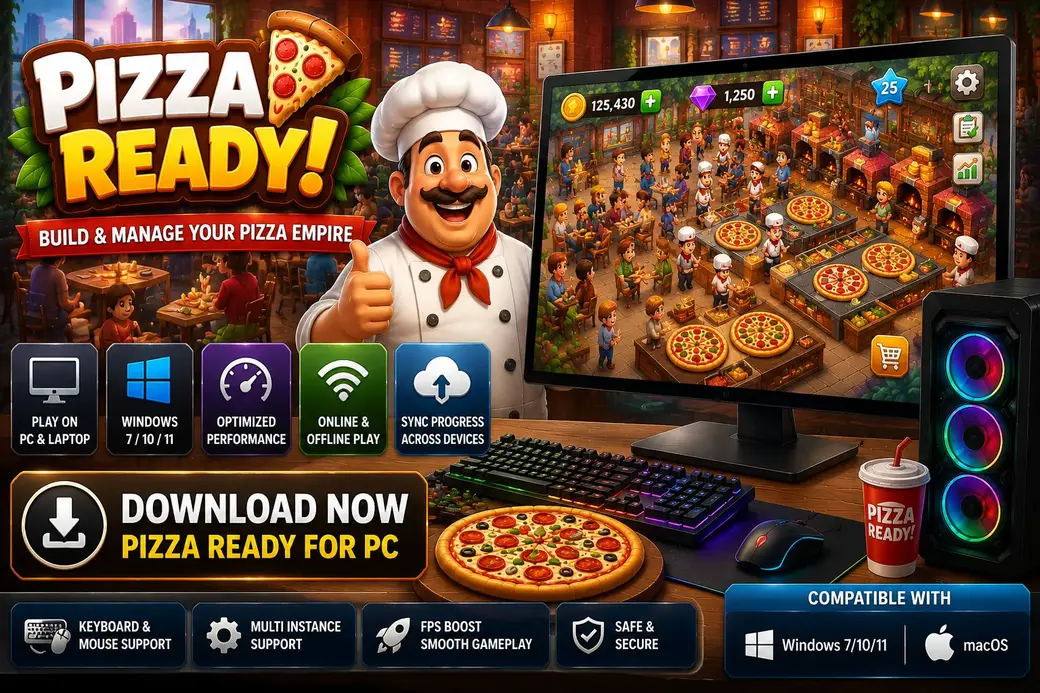
Yes, you can play Pizza Ready on PC, and one of the three routes is official. Supercent’s game is listed on Google Play Games on PC, which runs it natively on Windows with no emulator involved. If your machine cannot meet that bar, an Android emulator covers Windows 7 onward and Apple Silicon Macs, and a browser based cloud service runs it with nothing installed at all. This page explains all three, with the real requirements for each. For the Android version and its modified build, see the Pizza Ready Mod Apk guide.
Is Pizza Ready available on PC?
Yes. The Google Play listing states the game is available on Android and Windows, and there is a separate Google Play Games on PC entry for it. That is a native Windows client, not an emulator. Two other routes exist for machines that do not qualify: Android emulators, and browser based cloud play.
Most pages covering Pizza Ready for PC point you straight at an emulator, because emulator companies pay for that traffic. That advice is not wrong, but it skips the better option for anyone on a reasonably modern Windows machine. Google shipped a native Windows client precisely so that games like this one do not need a third party wrapper, and Pizza Ready is in its catalogue.
| Route | Works on | Cost | Best for |
|---|---|---|---|
| Google Play Games on PC | Windows 10 v2004 and newer | Free | Anyone whose machine qualifies |
| Android emulator | Windows 7 onward, Apple Silicon Macs | Free | Older Windows, Macs, multi instance |
| Browser cloud play | Any machine with a browser | Free | Trying it without installing anything |
Route one: Google Play Games on PC, no emulator
The cleanest way to run Pizza Ready for PC is Google Play Games on PC, a native Windows client from Google that runs Android titles directly, with mouse and keyboard support built in. Pizza Ready has its own listing there. It is free, it needs no Android device, and it is the only route that is officially supported by both Google and the game’s publisher.
The catch is the hardware bar, which is higher than most people expect and is the reason this route gets skipped so often. These are Google’s published minimums, not estimates:
| Requirement | Minimum |
|---|---|
| Operating system | Windows 10 version 2004 or newer |
| Storage | Solid state drive with 10 GB free |
| Graphics | Intel UHD Graphics 630 or comparable |
| Processor | 4 physical CPU cores |
| Memory | 8 GB of RAM |
| Account | Windows administrator account |
| Firmware | Hardware virtualization enabled |
Two of those trip people up. The SSD requirement is genuine, and the installer will refuse a mechanical hard drive rather than run badly on one. And hardware virtualization is off by default on a lot of prebuilt machines, which you enable in the BIOS or UEFI under a setting named Intel VT-x, AMD-V, or simply Virtualization.
How to install it
- Download Google Play Games on PC from Google’s own site. Take it from nowhere else.
- Run the installer as an administrator and let it finish. It is a large download.
- Sign in with the Google account you want the game tied to.
- Search the built in catalogue for Pizza Ready and install it from there.
- Launch it. Mouse and keyboard work immediately, with no configuration.
Why Windows 7 cannot use this route
Google’s floor is Windows 10 version 2004, released in May 2020. There is no Windows 7 or Windows 8 build, no compatibility mode that works around it, and no unofficial installer worth trusting. If you are on Windows 7, skip to the emulator route below, which does still support you with a specific caveat.
Route two: Android emulators, for older Windows and for Mac
An emulator runs a full Android environment inside a window on your desktop, then runs the game inside that. It is slower than the native client and heavier on memory, but it accepts far older hardware, it works on Apple Silicon Macs, and it is the only route that supports multiple instances and custom key mapping.
On Windows, including Windows 7 and 8
BlueStacks 5 lists Windows 7 and above, 4 GB of RAM, 5 GB of free disk space, an Intel or AMD processor, virtualization enabled and an administrator account. Its recommended tier is 8 GB of RAM.
The caveat that matters, and that almost nobody publishes: Windows 7 and Windows 8 users are capped at BlueStacks version 5.21.300 and below. Newer releases dropped those operating systems. So the route works, but you are pinned to an older build that will not receive updates. Weigh that before committing a lot of hours to a save file.
On Mac
BlueStacks Air is the current Mac client. It requires macOS 11 Big Sur or newer and an Apple Silicon chip, meaning M1, M2, M3 or M4. It asks for 8 GB of RAM, with 16 GB recommended if you plan to run several instances, and roughly 12 GB of free storage.
Intel Macs are not supported at all. If you have one, the browser route below is your only realistic option.
Installing through an emulator
- Download the emulator from its official site, never from a mirror or a download portal.
- Install it, then open it and complete the Google sign in when prompted.
- Open the Play Store inside the emulator window and search for Pizza Ready.
- Install and launch it from inside that environment.
You can also drag an APK file onto most emulator windows to install it directly, which is how people run modified builds on a desktop.
Route three: playing in a browser, nothing installed
Cloud gaming services stream the game from their own servers to your browser tab, so your hardware does not matter and nothing is installed. It is the fastest way to try Pizza Ready on a computer. The trade off is a mandatory internet connection and input lag that idle games tolerate better than most genres.
This suits three situations well: an Intel Mac, a work laptop you cannot install software on, and simply wanting to see whether you like the game before committing 10 GB of disk to it. It suits nothing else particularly well, because you are at the mercy of the service’s queue and session limits.
Note that a browser session is a separate account from anything you run locally. Progress made in a cloud session stays with that service.
Keyboard and mouse controls
Pizza Ready was designed for a touchscreen, so the desktop control scheme maps a virtual finger to your mouse and the movement joystick to WASD or the arrow keys. On Google Play Games on PC this mapping is preconfigured. On an emulator you get a default map that you can rewrite completely.
The practical layout, once you settle in:
| Input | Action |
|---|---|
| WASD or arrow keys | Move your character between stations |
| Left mouse click | Tap: collect, confirm, buy an upgrade |
| Mouse drag | Pan the restaurant view |
| Scroll wheel | Zoom in and out |
| Escape | Close a menu or dialogue |
The genuine advantage over a phone is precision. Moving between the counter, the oven and the till is a keyboard press rather than a thumb drag, and on a busy shop that is the difference between clearing a queue and watching customers leave.
Key mapping
Emulators expose a key mapping editor, usually behind a keyboard icon on the side toolbar. You draw a marker onto a spot on the screen and bind a key to it, so a fixed on screen button such as the upgrade panel becomes a single keystroke.
For an idle restaurant game the mapping worth setting up is small: movement on WASD, a key bound to the collect button, and a key bound to the upgrade menu. Anything more elaborate is effort you will not recover, because the game does not have that many distinct actions.
Multi instance
Multi instance runs several separate copies of the emulator side by side, each with its own Google account and its own save. For an idle game this means several restaurants accruing at once. It is an emulator only feature, and Google Play Games on PC does not offer it.
Budget roughly 2 GB of RAM per additional instance on top of the base requirement. Two instances on an 8 GB machine is comfortable. Four is not, and the symptom is not a crash but everything becoming slow enough that you stop enjoying it.
Instances are genuinely independent, so a modified build in one and a clean Play Store copy in another will not interfere with each other. That is the usual reason people set it up.
Getting a smoother frame rate
Pizza Ready for PC is not demanding, so poor performance on a desktop is nearly always a configuration problem rather than a hardware one. The three fixes that resolve most cases are enabling virtualization, allocating more cores and memory to the emulator, and switching the graphics renderer.
- Enable virtualization. This is the single biggest one. Without it an emulator falls back to a software path that is several times slower. The setting lives in your BIOS or UEFI as Intel VT-x, AMD-V or Virtualization Technology.
- Raise the allocation. In the emulator’s performance settings, give it 4 CPU cores and 4 GB of RAM if your machine can spare them. The defaults are conservative.
- Switch the renderer. Try the alternative graphics mode, usually a choice between OpenGL and Vulkan or DirectX. One of them will be clearly better on your GPU and there is no way to predict which.
- Cap the frame rate at 60. Pushing higher on an idle game generates heat and fan noise for no visible gain.
- Update your graphics driver. From Intel, AMD or NVIDIA directly, not from Windows Update.
Does progress sync between PC and mobile?
Only when both sides are the official game signed into the same Google account. Sign in on Google Play Games on PC with the account you use on your phone and the save follows you. An emulator running the Play Store version behaves the same way. A modified build cannot sync at all, on any platform.
This is worth understanding before you invest time, because it is the most common disappointment on this topic. The sync is a Google Play Games feature tied to the app’s signature. Change the signature, which is exactly what a modified build does, and the sign in stops being accepted. There is no workaround and no recovery if the save is lost.
So the honest guidance is: if you want one restaurant that follows you between your phone and your desk, use the official game on both. If you want the modified build, treat each installation as its own separate save that lives and dies with that machine.
Can you run the modified build on a computer?
Through an emulator, yes. Drag the APK file onto the emulator window, or use its built in APK installer, and it installs into that Android environment exactly as it would on a phone. Google Play Games on PC cannot do this, because it only installs from Google’s own catalogue.
This is the one thing an emulator does that the official client cannot, and for a lot of people it is the deciding factor. The limitations carry across unchanged: no cloud save, no achievements, and server validated events behaving unpredictably. Running it on a bigger screen does not change any of that.
One practical note. Uninstall any copy already inside the emulator first, for the same signature conflict reason that applies on a phone.
Which route should you pick?
| If you want | Use |
|---|---|
| The simplest setup that works | Google Play Games on PC |
| Your phone save on a big screen | Google Play Games on PC, same Google account |
| To run it on Windows 7 or 8 | Emulator, pinned to version 5.21.300 |
| To run it on an Apple Silicon Mac | BlueStacks Air |
| To run the modified build | Emulator |
| Several restaurants at once | Emulator with multi instance |
| To try it with nothing installed | Browser cloud play |
| To play on an Intel Mac | Browser cloud play, the only option |
Frequently asked questions
Is Pizza Ready available on PC?
Yes, and officially. The Google Play listing shows availability on Android and Windows, and the game has its own Google Play Games on PC entry. Beyond that official client, Android emulators and browser based cloud services both run it on desktops that cannot meet Google’s hardware bar.
Is Pizza Ready available on PC for Windows 7?
Not through the official client, which requires Windows 10 version 2004 as an absolute minimum. Windows 7 is served only by an emulator, and even then you are limited to BlueStacks 5.21.300 or older, since later releases dropped Windows 7 support entirely.
Is Pizza Ready available on PC for Windows 10?
Yes, provided you are on version 2004 or newer, which covers any Windows 10 machine patched since mid 2020. You also need an SSD with 10 GB free, 8 GB of RAM, four physical CPU cores and virtualization switched on in the firmware.
Can I play Pizza Ready on PC without an emulator?
Yes. Google Play Games on PC is a native Windows client, not an emulator, and Pizza Ready is in its catalogue. Mouse and keyboard support is built in and configured for you. This is the recommended route whenever your machine meets the requirements.
Is Pizza Ready free on PC?
Yes, on every route. The game is free on Google Play, Google Play Games on PC is free, and the mainstream emulators are free to download and use. The only costs anywhere are the optional in app purchases inside the game itself.
Does Pizza Ready sync progress between PC and mobile?
Yes, when both are the official game signed into the same Google account. The save is held by Google Play Games rather than on the device. Modified builds cannot sync on any platform, because the sign in is tied to the original app signature.
Is Pizza Ready safe to download on PC?
From Google’s own catalogue, yes. From an emulator’s built in Play Store, yes, since you are installing the same package Google serves. The risk lies entirely in where you get the installer: take emulators from the vendor’s own website, never from a download portal or a mirror.
What are the system requirements for Pizza Ready on PC?
For Google Play Games on PC: Windows 10 version 2004, an SSD with 10 GB free, Intel UHD Graphics 630 or comparable, four physical CPU cores, 8 GB of RAM, an administrator account and hardware virtualization enabled. Emulators ask for considerably less.
How much RAM do I need for Pizza Ready on PC?
The official client requires 8 GB. BlueStacks 5 runs on a minimum of 4 GB and recommends 8 GB. If you intend to run multiple instances, budget roughly 2 GB for each additional one, so 16 GB is the sensible floor for three or more restaurants at once.
Can I play Pizza Ready offline on PC?
Yes for the two installed routes. Google Play lists the game with an Offline tag and the core loop needs no connection once installed, on desktop as on mobile. Browser cloud play is the exception, since the game is running on someone else’s server and streaming to you.
How do I install Pizza Ready on Windows?
Download Google Play Games on PC from Google’s site, run the installer as administrator, sign in with your Google account, search the catalogue for Pizza Ready and install it there. If your machine falls short of the requirements, install an emulator instead and get the game from the Play Store inside it.
The short version
If your machine runs Windows 10 version 2004 or later, has an SSD and 8 GB of RAM, use Google Play Games on PC. It is official, it is free, mouse and keyboard work out of the box, and your phone save comes with you. Everything else is a workaround for a machine that cannot clear that bar.
If you are on Windows 7 or 8, on an Apple Silicon Mac, or you specifically want to run a modified APK on a desktop, an emulator is the answer, with the version cap on older Windows worth knowing before you start. If you are on an Intel Mac or a locked down laptop, browser cloud play is the only route left and it works fine for a game this undemanding.
Pizza Ready is a trademark of Supercent, Inc. This site is not affiliated with, endorsed by, or sponsored by Supercent, Inc., Google LLC or BlueStack Systems, Inc. All app names, logos and trademarks belong to their respective owners. Files here are provided for evaluation, and we encourage you to support developers by using the official Google Play release.